How To Recover Loksewa Aayog Online Form Screen Name and Password?
How to reset Loksewa Aayog username & password?
I forget Loksewa Aayog online application form Username & Password?
I forget Lok Sewa Aayog Screen Name?
[su_divider top=”no”]
Now let’s start our textual Tutorial or Instruction How to recover loksewa aayog username password?
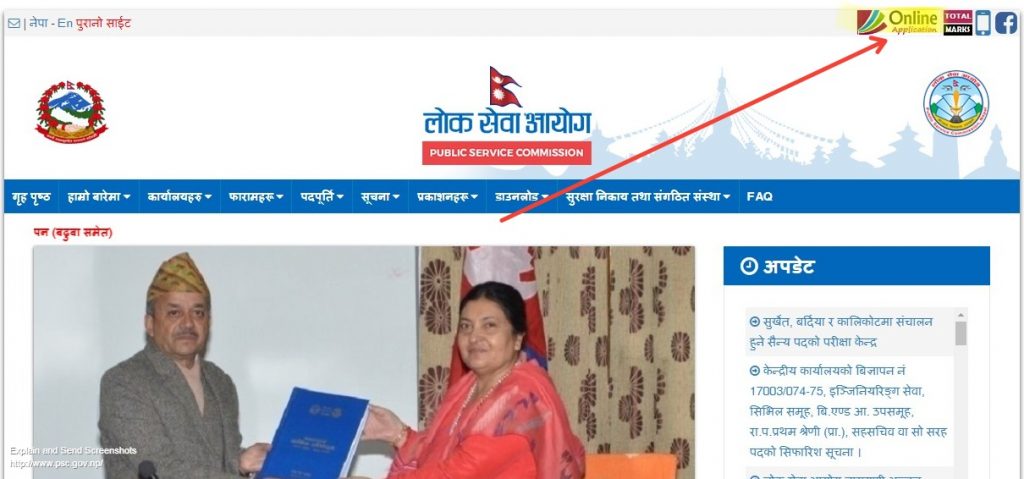
Step-1 : Go to official website of Loksewa Aayog “www.psc.gov.np” and click on “Online Application” Button on right top corner shown on image.
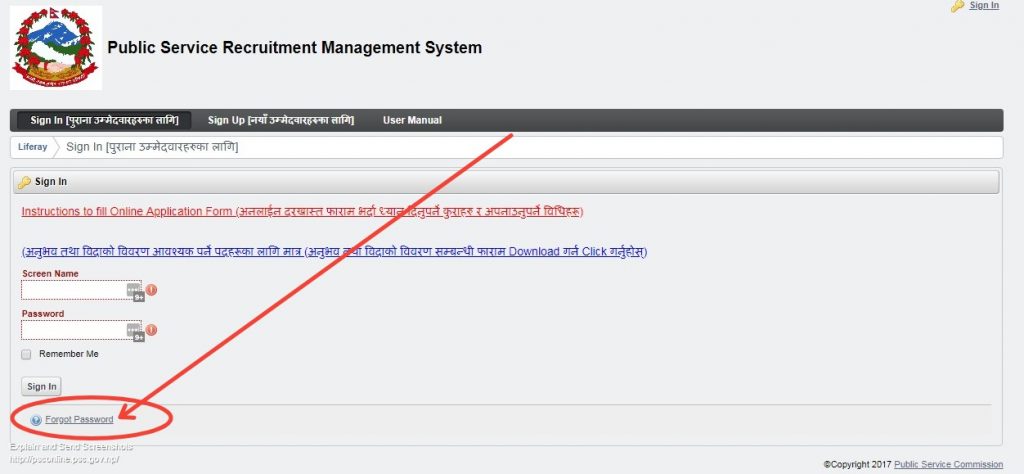
Step-2 : Now you will be on the sign in page where you can find forget password button just like in the image below. Click on that ‘Forget Password” Button.
Step-3 : Now you are on the page where you have to type your USER NAME/ SCREEN NAME which is required to put there, Without your screen name you can not reset your password. If You have forget your Screen Name too  then you have to contact your nearest PSC Office.
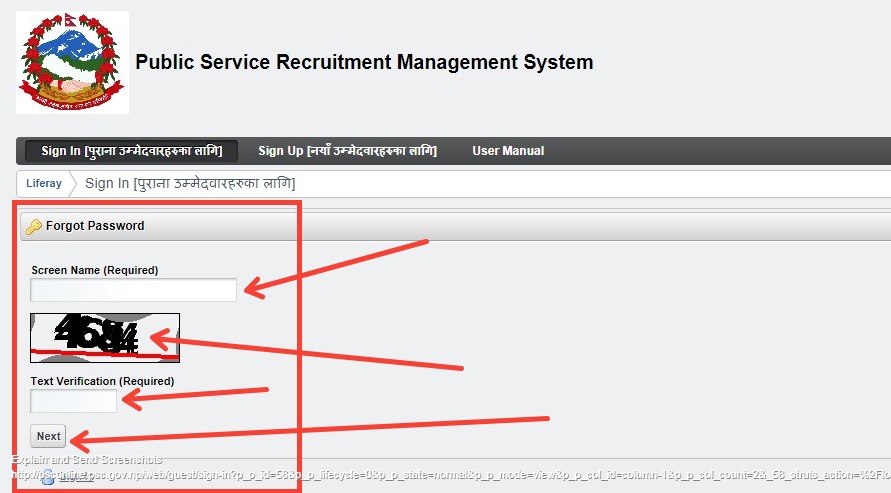
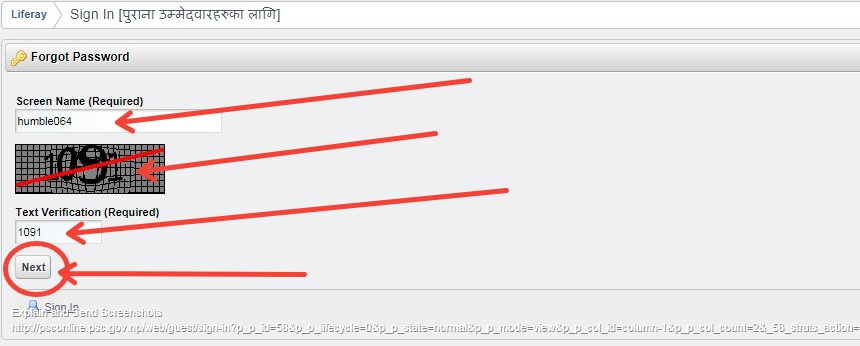
Put your screen name or username at top, then in second text box type the text and number which are shown on the image just above your Screen Name (just like at Second arrow). After that click on ‘Next’ Button.
हरेक Click / Refresh मा माथी देखिएझैँ Text Verification Code बदलिरहनाले तत्काल देखिरहेकाे काेड नै लेख्नुहाेला ।
Step-4 : Now will lead you to the Sending Password Reset Page where you have to cross the Question-Answer Step Successfully. And Click on “Send Password Reset Link” Button. As in the image below.
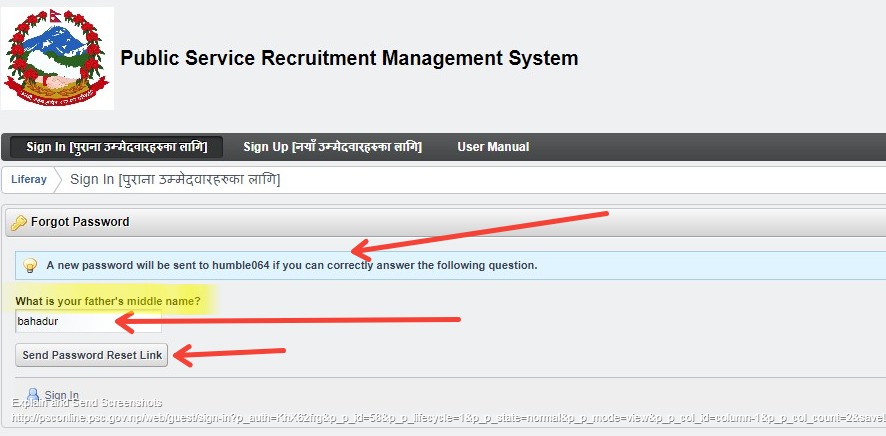
यहाँ तपाइँले फारम भर्दा दिएकाे सेक्यूरीटी चेक प्रश्न तपाइँकै विवरण सँग मिल्दाे साेधिनाले सहि उत्तर टाइप गर्नुहाेला । अन्यथा उत्तर नमिले याे प्रक्रिया सफल हुने छैन ।
Step-5 : Now you will get a message on your mobile number which you have added on PSC form fillup process or you will get the email you provided. The final message will be as follows.
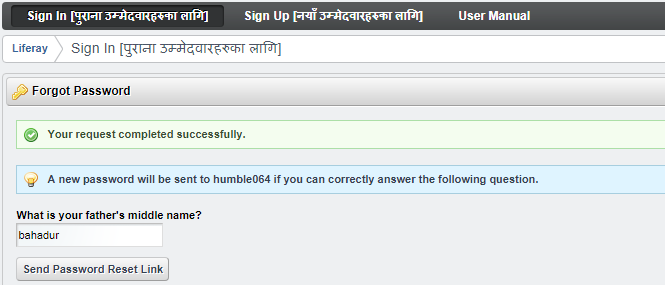
Now you have successfully reset or recovered your loksewa aayog username password. Please Share the post if it helps you.
Incoming Search Terms: recover loksewa aayog username password
[su_divider top=”no”]
लाेकसेवा अायाेगकाे अनलाइन फारम भर्ने तरिका काे बारेमा यदि तपाइ पुर्णतया अनबिज्ञ हुनुहुन्छ भने याे भिडियाे हेर्नुहाेला ।
Please watch the video below:
If you do have any problem regarding the PSC Online application form please refer my video tutorial above and feel free to discuss in the comment.
Please like share and comment if you love the post.
]]>At the beginning of this year Loksewa Aayog PSC again added a very valuable feature on its webpage, which is the appreciable effort on e-governance.
And that amazing feature is now every competitor can view their total score number of their last Loksewa Aayog Exam by their own through the official webpage of Public Service Commission of Nepal.
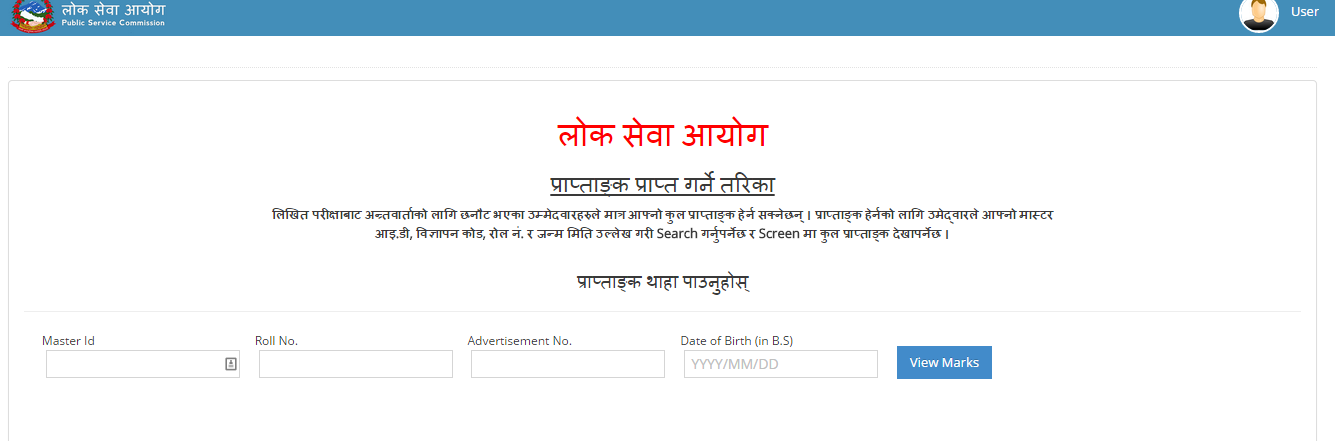
Before this facility of Loksewa Aayog you never can know your total score number whatever you topped the exam and got the Job. But after this feature now we can watch our result with our total scored number. ( प्राप्ताङ्क सहितकाे नतिजा )
We believe that after using this feature of Loksewa now every candidate can get feedback and encouragement watching the number they scored and which will help them to eliminate the mistakes they had made on last exam.
So this is the ultimate feature which leads hard working candidates to success. Thanks Publich Service Commission for this wonderful new feature.
How to view my Score on PSC webpage?
- To view your score first you have go through the official webpage of Loksewa and that is www.psc.gov.np
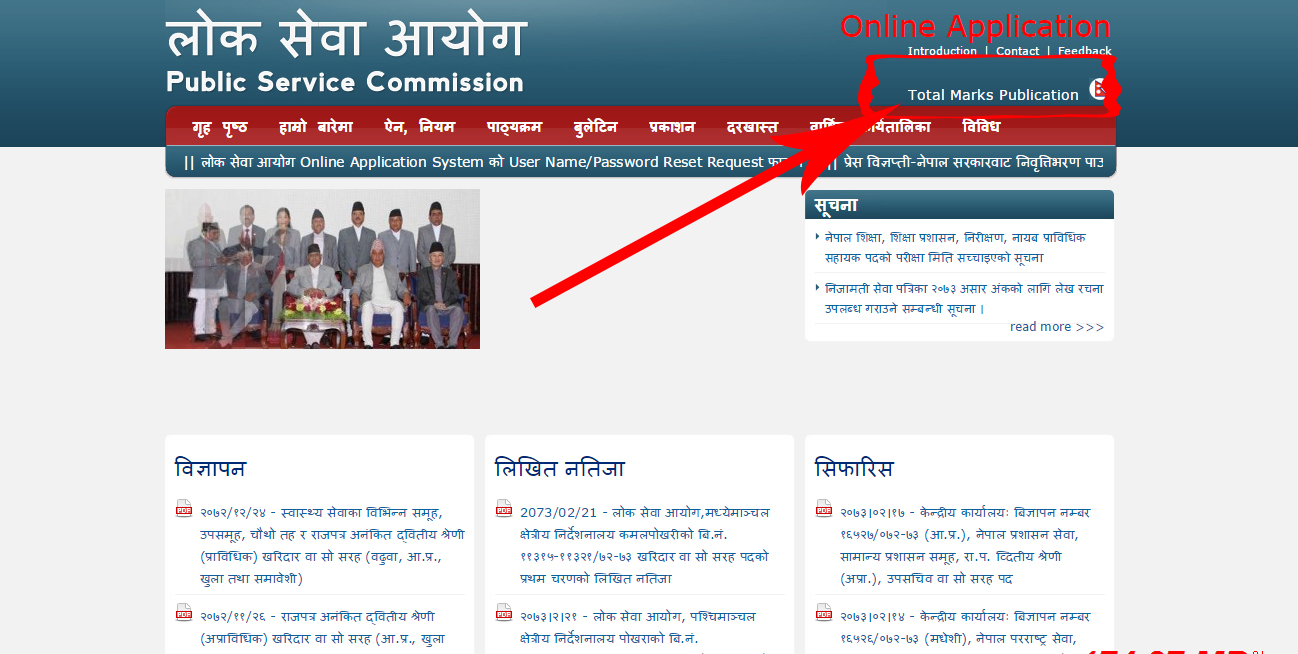
- Then Click on the link at the top right of the page called ” Total Marks Publication “.
- Now you are asked to fill your Master ID, DOB , Vacancy Number and so on, now it will show your total number of scores according to your information given above exam. (As shown of the Image Below)
This way we can view our score and improve our preparation. Thanks for landing here, hope it helps you.
Happy Preparation guys.
Please do Like and Share if this post helps you and Please make comment if you got any confusion.
]]>
How To Fill Loksewa Aayog Online Application Form?
How to Fill Up Public Service Commission Online Form?
How to apply online for Loksewa Aayog?
How to Pay Loksewa Aayog online application form fee?
How to Fill Up Online Application Form for Lok Sewa Aayog?
लाेकसेवा अायाेगकाे अनलाइन फारम भर्ने तरिका काे बारेमा यदि तपाइ पुर्णतया अनबिज्ञ हुनुहुन्छ भने लेखिएकाे याे पाेष्ट भन्दा भिडियाे हेरेर फारम भर्न सजिलाे हुनेछ । यदि तपाँइ भिडियाे हेरि अाफ्नाे फारम भर्न चाहनुहुन्छ भने कृपया तलकाे भिडियाेमा क्लिक गरि हेर्नुहाेला ।
यदि तपाँइलाइ फारम भर्ने प्रक्रिया वा फारम भरिसके पछि दरखास्त दस्तुर तिर्न असहजता छ भने हामिलाइ हाम्रो फेसबुक पेजमा आफ्नो MASTER ID सहित बिवरण दिनुहोस हामि केहि क्षणमै तपाँइको दरखास्त दस्तुर लोकसेवा आयोगको जुनसुकै कार्यालयमा घरमै बसेर वुझाउने ब्यवस्था मिलाउँनेछौँ।
Please watch the video below:
Before going to this post I refer you to watch this video where I have described you How To fill Loksewa Aayog Online Application Form? With simple and clear step by step method without any confusion.
It’s been almost one year that the Public Service Commission of Nepal ( Loksewa Aayog ) has started Online Application Form System to apply for almost all of job vacancy for Nijamati Service. Before Loksewa Aayog started Online Application form candidates used to submit their form through the corresponding PSC Loksewa Aayog regional offices within the certain time on Office hour. Recently Loksewa Aayog of Nepal PSC updated its vacancy application system using current ICT. The online application form of Loksewa Aayoug is fruitful to all of us who are preparing and planning to apply for any Nepali Government Job because now all the candidates of PSC throughout the world can submit their Online Application of Loksewa Aayog at any time as their wish very easily.
Now let’s start our textual Tutorial or Instruction How to fill Loksewa Aayog Online Application Form?
Before you apply for any job vacancy for the required post you must create you personal account on Loksewa Aayog Online Application Form page exactly how you create your profile account on Facebook. And don’t worry you don’t have to create account every year regularly, when you create your account once it will be remain and useful for lifetime. Now follow this step to create your profile on PSC and apply for a Online Application Form.
Step ONE: Sign Up or Creating your Account on Loksewa Aayog Online Application form System Page.
- Go to official website of Loksewa Aayog “www.psc.gov.np”
- Click on the link on the Top Right most corner link called “Online Application” or Click here.
- It leads you on the home page of Loksewa Aayog Online Application Form page. Now click on “Sign Up” button.
- Now properly fill the detail of yours as asked in the form. (Don’t worry you can edit your detail time to time if needed.
- Now if you finished filling your personal detail then click on “Save” button on the left bottom page.

- Now click on “Yes I want to Submit” button.
Yes, that’s all for first step, Now you have successfully created your Loksewa Online Application Form profile/account. You can see your username or password automatically popped at the top right corner of current page as similar as in image below.
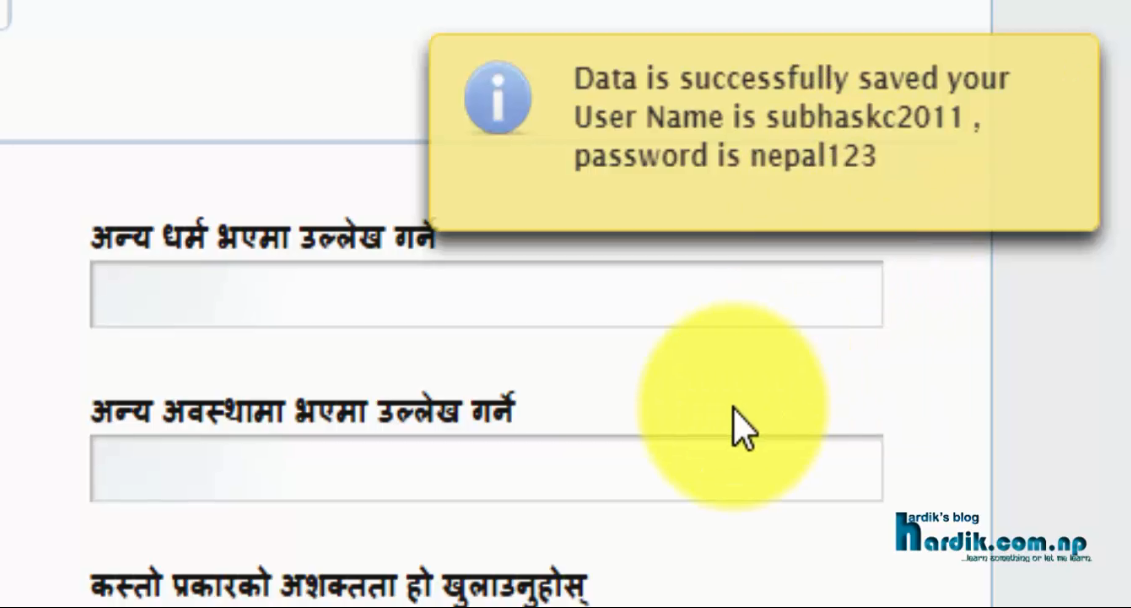
You will also get your Username and Password on your mobile phone in a SMS send by PSC SMS service number 5455.
Step TWO: Sign In on your personal profile Account on Loksewa Aayog Online Application System Page.
- Now Click on “Sign In” Button.
- Enter your Username and Password which was just sent on you mobile phone and on you previous Sign Up page. (Your Default password is nepal123 which you have to change for security reason.)
- Now you will ask to reset your password, here enter your chosen new password in both password fields and Click on “Save”.
- Now choose a password reminder question and write down correct answer and Click on “Save” button. (This is a security method to restore your password if you forget it in the future.)
- Now you have logged in successfully with your new password on your Loksewa Online Application Form page and Now you are in Your “Personal” detail tab where you already have filled some details just before.
- So, now click on “Next” button on the most right bottom of the page which leads you on “Extra” details tab.
- Now again click on “Next” button on the most right bottom of the page without doing anything on this page because we already filled up this page before while signing up.
- Now you are on “Contact” details tab where you have to type some info your contact details. After typing your details please click on “Update Contact Detail” button and after that click on “Next”.
- Now you will jumped to “Education” Details tab. Now click on “Add New Details” button and add your all details and click on “Next”.
- In this way please add you all details orderly to Training, Medical Council and Experience details tab correspondingly clicking on “Next” button.
- Finally you are on your “Upload” details page where you are asked to upload your PP sized image and scanned copy of your signature. Please upload your image and signature and Click on “Next” button.
- Finally now you have successfully got your master ID for your application which is used to pay your application fee. So please remember or make copy of your master ID. (On this preview page you can review your all details and your any mistakes can be corrected by going back to corresponding tab) if you are all correct lastly Click on “Next” again.
- Now you are on your submit page where you can view all of recent Vacant Post and choose to apply for. You can choose different service and class of the vacant post that are applicable according to your academic qualification.
Step THREE: Choose Your Required Post and Apply Online on Loksewa Aayog Online Application System Page.
- Now click on “View All” button on top to show all of the recent vacancy asked by Public Service Commission.
- Now you will be shown all the recent vacancy with its details like Vacancy Code, rank, post, service, group, deadline for online application etc.
- For your ease please search your required Post on the search box as shown on my video below.
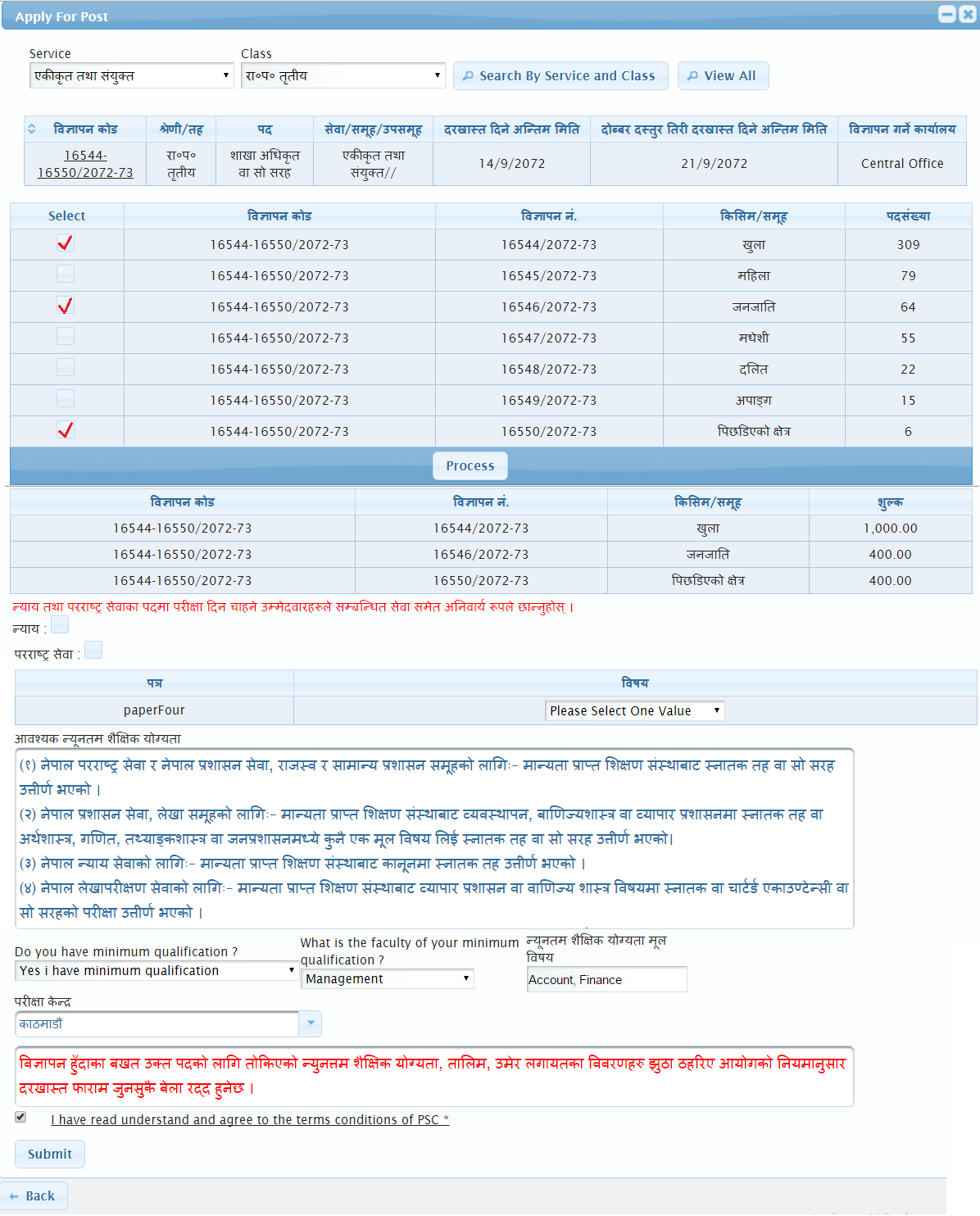
How to apply for a post. - When your required post will be shown after searching please click on the “Vacancy Code link” of from which region you are willing to apply.
- After that It will show you the total number of required post on your prepared post, here please “Tick” your required post on which you would like to apply. (खुला आन्तरिक समावेशी आदि आवश्यक सबै पदका लागि टिकमा क्लिक गर्ने ।)
- Finally click on “Process” button.
- Now choose your exam center and tick on ” I have read…….so on”.
- Lastly Click on “SUBMIT” button. And it’s done.
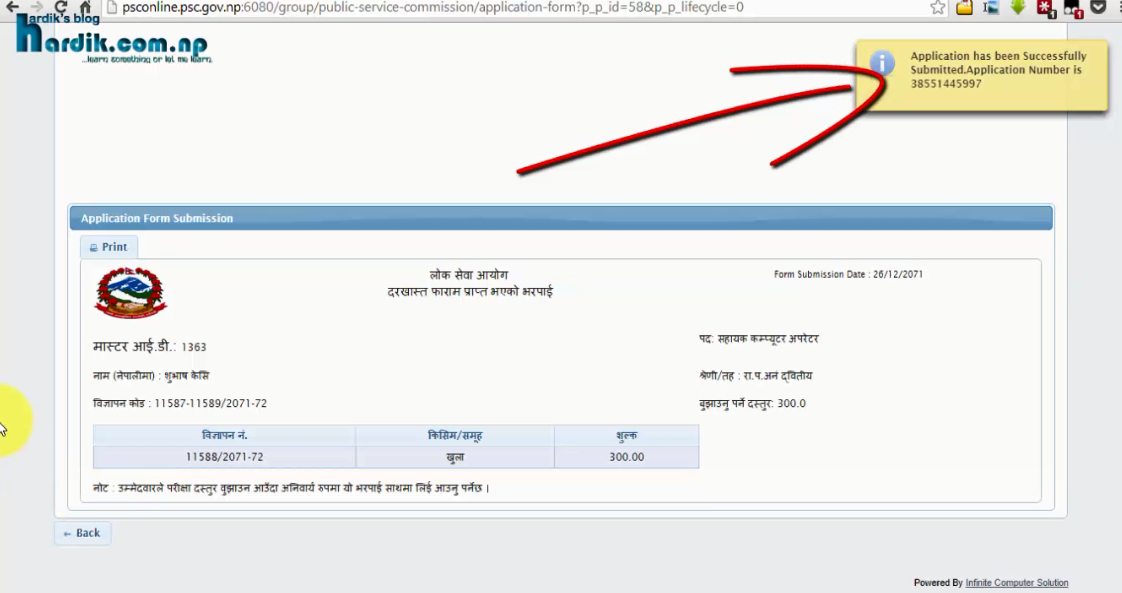
- Now your Loksewa Online Application Form fill up process is accomplished and you will get you official receipt for your application with your Master ID, Fee detail and so on, which is helpful to you to pay your vacancy registration fee. (PLEASE CONTACT US IF YOU WANT TO PAY YOUR REGISTRATION FEE FROM YOUR HOME. YOU DON’T NEED TO GO LOKSEWA OFFICE CONTACT US, यदि तपाँइलाइ फारम भर्ने प्रक्रिया वा फारम भरिसके पछि दरखास्त दस्तुर तिर्न असहजता छ भने हामिलाइ हाम्रो फेसबुक पेजमा आफ्नो MASTER ID सहित बिवरण दिनुहोस हामि केहि क्षणमै तपाँइको दरखास्त दस्तुर लोकसेवा आयोगको जुनसुकै कार्यालयमा घरमै बसेर वुझाउने ब्यवस्था मिलाउँनेछौँ।).
I suggest you to watch the video for better understanding, video is in Nepali language. With simple and clear step by step method without any confusion.
लाेकसेवा अायाेगकाे अनलाइन फारम भर्ने तरिका काे बारेमा यदि तपाइ पुर्णतया अनबिज्ञ हुनुहुन्छ भने लेखिएकाे याे पाेष्ट भन्दा भिडियाे हेरेर फारम भर्न सजिलाे हुनेछ । यदि तपाँइ भिडियाे हेरि अाफ्नाे फारम भर्न चाहनुहुन्छ भने कृपया तलकाे भिडियाेमा क्लिक गरि हेर्नुहाेला ।
Please watch the video below:
If you do have any problem regarding the PSC Online application form please refer my video tutorial above and feel free to discuss in the comment.
Please like share and comment if you love the post.
]]>